
The energy sector stands at a critical juncture where environmental accountability meets operational efficiency. Carbon credit registry software has emerged as a foundational technology enabling energy companies to scale compliance, improve transparency, and unlock faster market access. When Pacific Energy Solutions implemented carbon credit registry software in Q2 2023, they didn’t anticipate the magnitude of transformation awaiting their carbon trading operations. Within eight months, verification timelines dropped from 45 days to just 72 hours, while administrative costs fell by 68%. This case study explores how digitizing carbon registries delivers measurable ROI and long-term competitive advantage in today’s compliance-driven energy landscape. What Is Carbon Credit Registry Software in the Energy Sector? Carbon credit registry software is a digital platform that records, verifies, tracks, and manages carbon credits throughout their lifecycle—from issuance and transfer to retirement. For energy companies, it replaces manual spreadsheets and fragmented systems with a secure, auditable, real-time registry, often powered by blockchain, automation, and marketplace integrations. The result is faster transactions, lower compliance risk, and improved monetization of environmental assets. The Manual Registry Challenge: A $2.3M Annual Drain Pacific Energy Solutions, a mid-sized renewable energy provider managing 850,000 carbon credits annually, relied on traditional registry processes riddled with inefficiencies. Their carbon trading desk employed 12 full-time staff to manage spreadsheets, email confirmations, and manual verifications. They faced three critical challenges: Beyond direct costs, manual processes caused a 4.7% error rate in credit tracking—creating compliance risk and reputational exposure. When regulatory scrutiny increased in early 2023, leadership recognized that adopting carbon credit registry software was no longer optional—it was essential. Image Placeholder:Comparison chart showing manual vs digital carbon credit registry timelines, costs, and error rates. The Digital Transformation Blueprint Pacific Energy partnered with a specialized development firm to deploy carbon credit registry software tailored for the energy sector. The implementation focused on three integrated capabilities. 1. Blockchain-Enabled Credit Registry Each carbon credit received a unique digital identifier with immutable provenance tracking—from generation through retirement. This eliminated dual record-keeping and provided cryptographic proof of authenticity for auditors and buyers. 2. Smart Contract Verification Automation The platform integrated directly with independent verification bodies. Documentation submission, validation, and approval workflows were fully automated. Once standards were met, credits moved from pending to tradable automatically. Result: Verification cycles dropped from 45 days to 72 hours (93% faster). 3. Real-Time Marketplace Integration The registry connected to major carbon exchanges, enabling instant price discovery and automated trade execution. Buyers accessed inventory, certification details, and pricing via a unified dashboard—expanding Pacific Energy’s potential buyer base by 340%. Implementation Journey: 90 Days to Full Deployment The deployment followed a phased rollout to ensure zero business disruption. Weeks 1–3: Data Migration Weeks 4–7: Training & Parallel Operations Weeks 8–12: Marketplace & Compliance Integration Outcome: First fully automated trade settled in 14 minutes, compared to the previous 11-day average. Quantifying the Return: 312% ROI in Year One Pacific Energy invested $340,000 in carbon credit registry software, covering development, integrations, and training. First-year returns exceeded expectations. Cost Reduction Revenue Growth Compliance Efficiency Image Placeholder:ROI dashboard showing cost savings, transaction speed improvements, and compliance efficiency gains. The Competitive Intelligence Advantage Beyond automation, carbon credit registry software delivered strategic intelligence. CRM-style buyer intelligence improved sales execution: Scalability for Growth: From 850K to 3.2M Credits Scalability proved to be the most powerful long-term advantage. By 2024, Pacific Energy managed 3.2 million credits—nearly 4x growth—without increasing operational headcount. The carbon credit registry software scaled horizontally, maintaining performance while reducing per-credit management costs. This technical maturity strengthened Pacific Energy’s market position. In December 2024, it directly supported a $23 million strategic partnership, validating the platform investment many times over. Why Energy Companies Can’t Afford Delayed Digitization Delaying adoption of carbon credit registry software creates compounding disadvantages: Digital capability is no longer a differentiator—it’s the baseline for survival. The Implementation Roadmap for Energy Companies To implement carbon credit registry software successfully: Technology delivers value only when teams fully adopt it. Conclusion: The Digital Imperative Pacific Energy Solutions’ transition to carbon credit registry software demonstrates how digitization drives efficiency, revenue growth, and strategic advantage. A 312% first-year ROI confirms that modern carbon registries deliver tangible business results. For energy companies, the real question isn’t whether to digitize—but how fast. With proven ROI and a 90-day deployment window, early action is the smartest move in a carbon-focused global economy. Ready to Calculate Your ROI? Discover how carbon credit registry software can unlock compliance efficiency and new revenue streams for your energy portfolio.Contact us today for a customized ROI and digital readiness assessment.
The voluntary carbon market reached $2 billion in 2024, yet over half of rainforest offset projects show signs of fraudulent activity. For enterprises investing millions in carbon neutrality strategies, this creates a multimillion-dollar risk exposure. The fundamental question sustainability officers now face isn’t whether to participate in carbon markets, but how to ensure every credit purchased represents genuine emissions reduction. Traditional carbon credit systems operate through fragmented registries, manual verification processes, and opaque trading mechanisms. This architecture creates systematic vulnerabilities: the same emission reduction gets claimed by multiple parties, verification can take 18-24 months, and audit trails disappear across registry boundaries. When a European manufacturing company recently discovered 30% of their purchased offsets were duplicated across three different projects, their board mandated a complete platform overhaul. This isn’t a compliance problem. It’s an infrastructure problem requiring an infrastructure solution. The $250 Billion Problem: Why Traditional Carbon Markets Fail Traditional carbon markets struggle because they rely on slow, fragmented, and opaque systems. This creates three major problems. With the carbon market expected to reach $250 billion by 2030, these problems will only grow if the system does not change. Blockchain Architecture: Engineering Trust into Carbon Markets Blockchain fixes the core weaknesses of traditional carbon markets by changing how carbon credits are created, tracked, and retired. Instead of relying on trust and manual checks, it uses code, cryptography, and automation. Immutable ledgers stop double-counting at the source.Each carbon credit is tokenized on the blockchain with a unique digital ID that cannot be copied or reused. Smart contracts enforce single ownership and one-time retirement. Once a credit is used, it is permanently recorded and cannot re-enter the market. This removes the risk of the same credit being sold multiple times. A European carbon exchange adopted this model in 2023. Over one year, it processed 4.3 million credits worth $86 million with zero double-counting incidents. Under its old system, it handled dozens of disputes every month. Cryptographic verification replaced manual reconciliation. Smart contracts dramatically speed up verification.Traditional verification can take 18–24 months due to paperwork, inspections, and approvals. Blockchain platforms automate this process by integrating satellite data, IoT sensors, and third-party auditor inputs. When predefined conditions are met, credits are issued automatically. In Brazil, an agricultural carbon project reduced issuance time from 16 months to just 11 days after moving to a blockchain-based system. This allows project developers to access capital faster and enables buyers to procure credits when they are actually needed. End-to-end provenance ensures full transparency.Every step—from project registration to final retirement—is permanently recorded on-chain. This creates a complete, tamper-proof audit trail. For companies facing stricter climate disclosure rules, blockchain provides verifiable proof that carbon claims are real, compliant, and defensible. Real Implementation: How a Fortune 500 Manufacturer Eliminated Carbon Credit Risk A global industrial manufacturer with $12 billion in annual revenue faced a critical problem in Q1 2024. Their sustainability roadmap committed to carbon neutrality by 2030, requiring annual offset purchases of 2.3 million metric tons. However, their procurement team had identified significant fraud risk in their existing supplier network. The Challenge: Unverifiable Carbon Credit Supply Chain Their traditional procurement process involved purchasing credits from three major brokers, who sourced from 40+ underlying projects across 15 countries. The manufacturer possessed no visibility into project verification, ownership history, or retirement status. When preparing their annual sustainability report, legal counsel flagged potential greenwashing liability: the company could not prove with certainty that any purchased credit represented genuine emissions reduction. Board-level sustainability governance requirements demanded a solution that provided: The Implementation: Custom Blockchain Carbon Platform The organization partnered with a specialized blockchain development firm to build an enterprise carbon credit trading platform with four core components. A tokenization engine converted verified carbon credits from established registries (Verra, Gold Standard, ACR) into blockchain-based digital assets. Each token mapped 1:1 to a registered credit, with metadata including project type, vintage year, verification methodology, and geographic location. The tokenization process automatically retired the original registry credit to prevent duplicative use. Smart contract verification protocols connected to third-party data sources: satellite imagery for forestry projects, IoT sensors for renewable energy installations, and government emissions databases for industrial efficiency programs. When project milestones were achieved, oracles transmitted verified data to the blockchain, triggering automated credit issuance based on pre-approved methodologies. An enterprise-grade trading interface integrated with the company’s procurement platform. Sustainability managers could search available credits by project type, price, and impact metrics, execute purchases through the platform, and automatically generate retirement documentation for reporting purposes. All transactions received cryptographic signatures and permanent ledger recording. A regulatory compliance module generated audit-ready reports linking each offset purchase to specific emission sources, retirement transactions, and project verification records. This documentation integrated directly with the company’s ESG reporting systems and provided export capabilities for SEC filings and investor relations materials. The Results: 94% Faster Verification, Zero Fraud Incidents Six months after platform deployment, the manufacturer had processed $8.3 million in carbon credit transactions representing 1.4 million metric tons of offsets. The operational improvements exceeded initial projections across all measured dimensions. Verification time decreased 94%—from an average of 127 days under the previous broker-based model to 7 days on the blockchain platform. This acceleration resulted from automated smart contract execution replacing manual documentation review. The sustainability team could now procure credits immediately before quarterly reporting deadlines instead of maintaining expensive inventory buffers. Double-counting incidents fell to zero. Under the legacy system, the organization averaged 3-4 disputed credits per quarter where verification revealed the same underlying reduction had been sold to multiple buyers. The blockchain platform’s cryptographic token system made this technically impossible—each credit existed as a unique digital asset that could only be retired once. Procurement costs decreased 23% through disintermediation. By purchasing directly from project developers via the blockchain platform rather than through brokers, the company eliminated two layers of markup. Project developers received higher payments, the manufacturer paid lower prices, and the eliminated middlemen absorbed the efficiency gains. Audit preparation time for sustainability reporting decreased from 6 weeks to 3

While most businesses see blockchain-based carbon credit marketplaces as a compliance checkbox, forward-thinking enterprises are recognizing something far more valuable: the infrastructure itself is the opportunity. The Uncomfortable Truth About Existing Marketplaces Here’s what nobody tells you: when you trade carbon credits on third-party platforms, you’re not just paying transaction fees—you’re surrendering control of a revenue-generating asset. These platforms capture the spread, own the customer relationships, and extract value from every transaction that flows through your carbon reduction efforts. But what if you flipped the script? The Platform Owner Advantage: A $120B Opportunity The voluntary carbon market is projected to reach $120 billion by 2030. The question isn’t whether this market will grow—it’s who will own the infrastructure that captures that value. Consider this model: Instead of being a participant in someone else’s marketplace, you become the marketplace operator for your industry vertical, supply chain, or geographic region. Three Revenue Streams You’re Missing 1. Transaction Economics at Scale Every trade generates 2-5% in transaction fees. A mid-sized industrial platform processing just $50M annually in carbon credits generates $1-2.5M in pure transaction revenue—before considering the appreciation of any credits you hold. But here’s where it gets interesting: unlike traditional financial exchanges, carbon platforms benefit from network compounding. As more participants join your ecosystem, liquidity improves, spreads tighten, and trading volume accelerates exponentially. Your supplier who trades $500K today could be trading $5M within three years as their own supply chain onboards. Each new participant doesn’t just add their volume—they multiply the potential connections and transactions across the entire network. 2. Data Monetization (The Silent Goldmine) Blockchain-based platforms generate unprecedented transparency into carbon reduction activities. This data—anonymized and aggregated—becomes incredibly valuable for: Companies like Chainalysis built $1B+ valuations essentially selling blockchain data insights. Your carbon marketplace generates similar proprietary intelligence. The real power lies in predictive analytics. You’re not just recording what happened—you’re sitting on behavioral patterns that predict which industries will need credits six months ahead, where pricing pressures will emerge, and which carbon reduction technologies deliver actual ROI. Investment firms, insurance companies, and corporate strategists will pay premium rates for these forward-looking insights that only a platform operator can generate. 3. The “Toll Bridge” Model Position your platform as the verification layer for your industry. Every carbon claim that needs credibility verification flows through your infrastructure. You’re not just trading credits—you’re becoming the trusted certification layer that competitors must use to establish credibility. This creates a defensible moat that’s nearly impossible to disrupt once established. Why Blockchain Changes Everything (And Why Timing Matters) Traditional carbon markets failed because of opacity, fraud, and double-counting. Blockchain solves these problems, but here’s the critical insight: the technology is mature enough to deploy, but early enough that market positions aren’t locked in. The window is now. In 24-36 months, dominant platforms will emerge in each vertical, and the barrier to entry will become prohibitively expensive. The Risk Nobody Discusses: Regulatory Capture Yes, regulatory uncertainty is a risk—but it’s also an opportunity. Regulators are actively looking for credible private sector solutions to standardize. Early platform operators have the opportunity to shape standards rather than adapt to them. The EU’s Carbon Border Adjustment Mechanism and California’s Cap-and-Trade program both emerged from collaboration with early market infrastructure providers. The Real Question: Build, Buy, or Get Left Behind? Here’s the framework we use with clients: Build your own platform if: Partner with existing platforms if: The middle ground: Commission a white-label platform that you control but don’t build from scratch. This captures 70% of the upside at 30% of the development cost. The 90-Day Carbon Platform Opportunity Assessment (Are You Sitting on a Hidden Revenue Asset?) Before investing millions—or waiting until competitors move first—smart enterprises start with one critical question: “Is there a carbon marketplace opportunity hidden inside our existing ecosystem?” In most cases, the answer is yes—but it’s rarely obvious without a structured assessment. A focused 90-day opportunity assessment can uncover: Most enterprises don’t need a platform immediately — but they do need clarity before the market decides for them. Why Enterprises Are Investing in Blockchain-Based Carbon Credit Trading Platforms Enterprises that complete this assessment typically discover one of two outcomes: Both outcomes save time, capital, and strategic missteps. The Key Advantage of Acting Now Early movers don’t just launch platforms—they define standards, onboard partners first, and embed themselves into regulatory and reporting workflows. Once that position is established, competitors are forced to connect to your infrastructure—not the other way around. If carbon credits will touch your business in the next 3–5 years, platform ownership must be a strategic discussion today—not a compliance reaction tomorrow. 👉 The smartest first step isn’t building. It’s validating the opportunity while the window is still open. What Happens If You Wait? Carbon markets are consolidating around infrastructure owners. If you delay: By the time platforms become “obvious,” the moat is already built. The Bottom Line The carbon credit market isn’t just about environmental compliance—it’s about who controls the infrastructure of climate capitalism. Third-party platforms want you to be a user. But with blockchain technology now accessible and proven, there’s never been a better time to become the platform. The companies building these systems today aren’t just preparing for regulation. They’re positioning themselves to profit from it. Contact Us: Techaroha
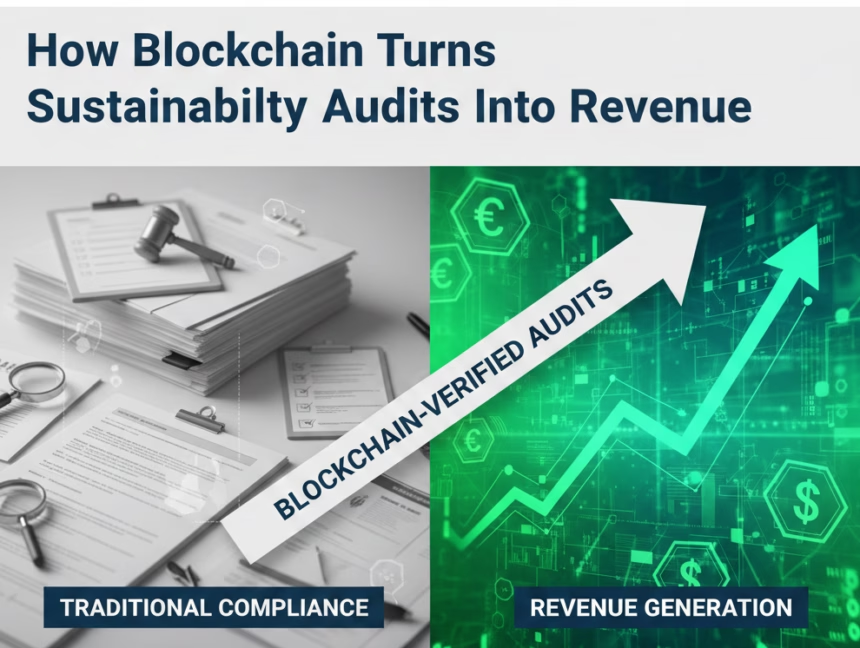
Sustainability audits were never designed to generate revenue.They were created to satisfy regulators, reassure stakeholders, and tick compliance checkboxes. But the market has changed. Today, sustainability performance directly influences carbon credit value, ESG financing access, procurement eligibility, and brand trust. In this new landscape, audits are no longer passive documents—they are economic signals. And blockchain is the technology that converts those signals into marketable assets. For businesses investing in carbon reduction projects, renewable infrastructure, or ESG programs, blockchain-enhanced sustainability audits represent a strategic opportunity: turning verified impact into tradable value. This article explores how blockchain transforms sustainability audits from static reports into revenue-generating infrastructure, and why companies that act early gain a measurable financial advantage. The Hidden Problem with Traditional Sustainability Audits Despite their importance, most sustainability audits still operate on outdated assumptions: These limitations create friction when audits are used beyond compliance—especially in carbon markets, where every claim must withstand scrutiny from registries, buyers, and regulators. The result? In short, traditional audits destroy value the moment they should be creating it. Blockchain Changes the Role of Sustainability Audits Blockchain doesn’t just “secure” audit data. It redefines what an audit is. When sustainability data is recorded on a blockchain: This creates a single source of truth that can be trusted by: The audit stops being a snapshot in time and becomes a living, verifiable asset. From Compliance Artifact to Market Infrastructure The most important shift blockchain enables is this: Audits move from “proof of compliance” to “proof of value.” Blockchain-backed sustainability audits can be directly integrated into: This integration removes friction between audit completion and monetization. 1. Earning Opportunity : Faster and More Valuable Carbon Credit Issuance Carbon markets reward credibility, traceability, and speed. Blockchain-enabled audits help businesses: This leads to: Projects backed by blockchain-verifiable audits often command premium pricing, because buyers face less reputational and regulatory risk. For project developers, this directly improves credit yield per ton. 2. Earning Opportunity: Premium Positioning in Voluntary Carbon Markets Voluntary carbon markets are evolving rapidly. Buyers no longer accept generic offsets—they demand: Blockchain-enhanced audits enable: This allows businesses to: In a market increasingly plagued by trust issues, verified transparency becomes a pricing lever. 3. Earning Opportunity: ESG-Linked Financing and Capital Access Financial institutions are tying lending terms to sustainability performance—but only when that performance is provable. Blockchain-based sustainability audits: For businesses, this translates into: Audit data becomes a financial credential, not just a reporting obligation. Why Generic Sustainability Tools Fail at Scale Many organizations attempt to digitize audits using off-the-shelf tools. These systems often fail because they: Blockchain-based platforms, when custom-built, solve these issues by design: This is why leading organizations move toward custom carbon credit trading platforms, not generic dashboards. The Strategic Advantage of Owning the Platform The biggest opportunity is not just issuing carbon credits. It’s controlling the infrastructure that produces them. Businesses that invest in blockchain-enabled audit and trading platforms gain: Over time, the platform itself becomes an asset—capable of generating revenue through: Real-World Scenario: Turning Sustainability Audits into Revenue Assets Consider a renewable energy developer operating projects across multiple geographies. Under Traditional Audit Models Each project undergoes standalone verification, often with different auditors and timelines. Audit data is stored in disconnected systems and must be repeatedly revalidated for every buyer, registry, or financing partner. As a result: Despite genuine environmental impact, much of the value is lost to process friction and trust gaps. With Blockchain-Enabled Audits and Trading Infrastructure Audit data is recorded immutably and integrated directly into a carbon credit trading platform. Emissions baselines, monitoring data, and verification records remain continuously accessible and tamper-proof. This enables: Business Outcome The same sustainability effort now delivers higher and more predictable returns, improved market access, and stronger long-term buyer relationships—without increasing operational complexity. Blockchain doesn’t change the project.It changes how efficiently value is unlocked from it. Why Platform Development Matters More Than Technology Choice Blockchain alone doesn’t create value. Value comes from how it’s implemented: This is why carbon credit trading platform development requires: Without this, even the best technology fails to monetize impact. The Business Case Is Clear Sustainability audits are no longer a regulatory afterthought. When powered by blockchain, they become: Companies that recognize this shift early gain: Final Thoughts: The Future Belongs to Audit-Driven Markets The future of sustainability is not about reporting more data.It’s about proving impact in ways the market can trust—and pay for. Blockchain-enhanced sustainability audits make this shift possible by turning verification into value, compliance into confidence, and environmental performance into a measurable economic asset. For businesses serious about carbon markets, ESG leadership, and long-term value creation, the question is no longer whether to adopt blockchain. It’s how strategically to design and implement systems that convert verified impact into sustainable revenue. This is where platform thinking matters—integrating audits, compliance logic, carbon credit issuance, and trading into a single, scalable infrastructure. If you’re exploring how to transform sustainability audits into monetizable carbon assets, Techaroha helps enterprises design, build, and implement blockchain-enabled carbon credit trading platforms tailored to real market requirements. 👉 Start the conversation here: Contact Techaroha